 Deutsch
Schnellbild
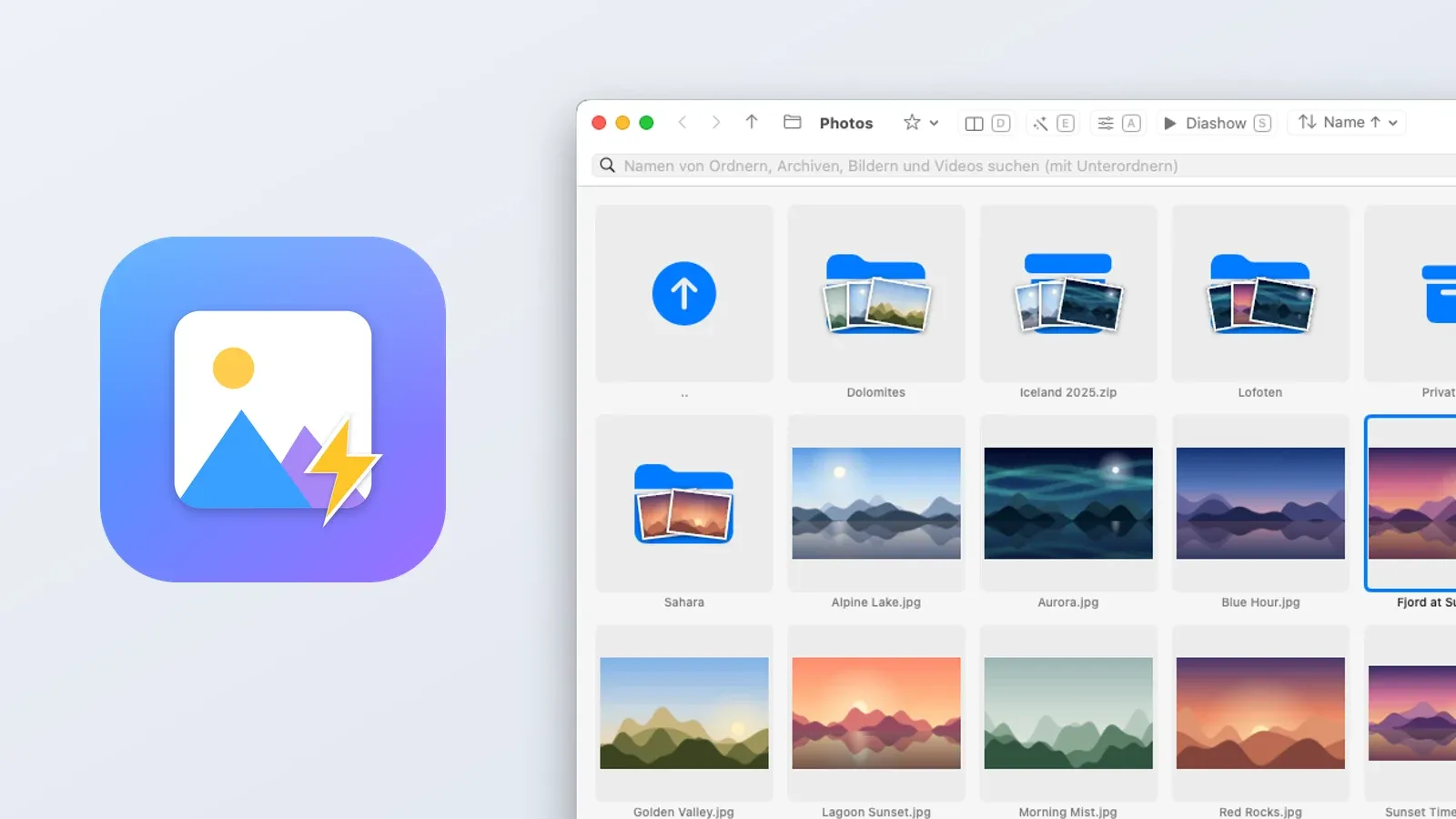
A free image viewer and MKV player for the Mac that simply stays out of your way.
Open a folder, see the thumbnails, look at an image in full size, flip to the next one with the keyboard. Videos play right alongside, including AVI, MKV and WebM. There is no library you have to import into first: Schnellbild opens the folder you point it at and stays fast even with large folders and network drives.

For macOS 15 or later on Macs with Apple silicon. Isolated in Apple's App Sandbox. Open the DMG and drag Schnellbild into the Applications folder.
Everything about Schnellbild at a glance is also on the app’s website: schnellbild.haushoppe-its.de
Why Schnellbild doesn’t get in your way
- No ads, no tracking, no account. Schnellbild shows your pictures and talks to no one.
- No upselling. No pro version, no subscription, no “unlock” button. Every feature is included.
- No bloat. No library, no editor, no cloud. Schnellbild is there for viewing and sorting photos and videos.
- Fast. Thumbnails appear while you scroll, even in large folders and on network drives.
- Careful with files from elsewhere. When viewing images, videos and archives, Schnellbild launches nothing and never goes online, out of the box, without any setting. Archives are only read and never extracted to disk. A double-click never launches a program, not even one hiding behind the name of an image.
- Isolated in Apple’s App Sandbox. Schnellbild runs in Apple’s App Sandbox, the same cage Apple puts every app from the Mac App Store in. Even a file crafted to exploit a vulnerability gets no further than Schnellbild itself is allowed to go: no network, no other programs, only the folders you grant access to.
- Doesn’t fall over. Broken files, exotic formats and slow disks show a placeholder, and the app keeps running. Your files only change when you want them to.
- Speaks your language. Schnellbild follows your Mac’s language and is translated into 20 languages.
Browse folders
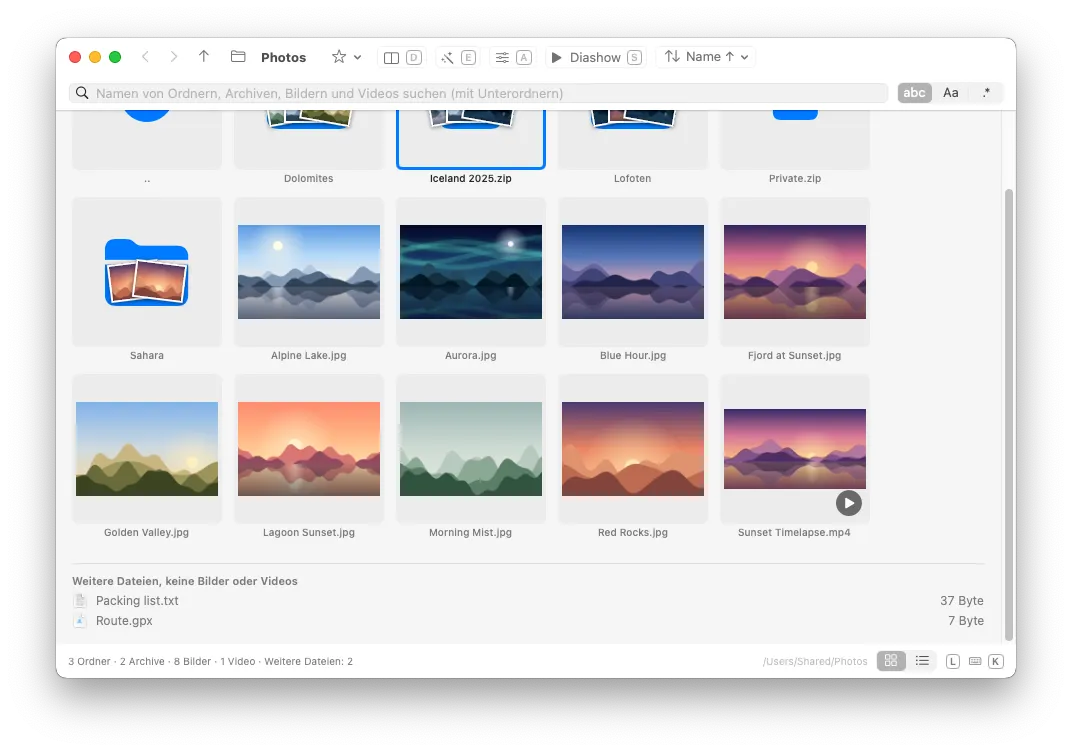
Open a folder with ⌘O or drag it onto the window. Subfolders come first and, just like in the Finder, show their first images as a preview. Folders without photos or videos are grayed out, so you don’t even need to open them. The arrow keys move through the grid, and the space bar opens an image, video or folder. On launch, Schnellbild reopens the last folder, and ⌘N gives you a second window, for example for a second screen.
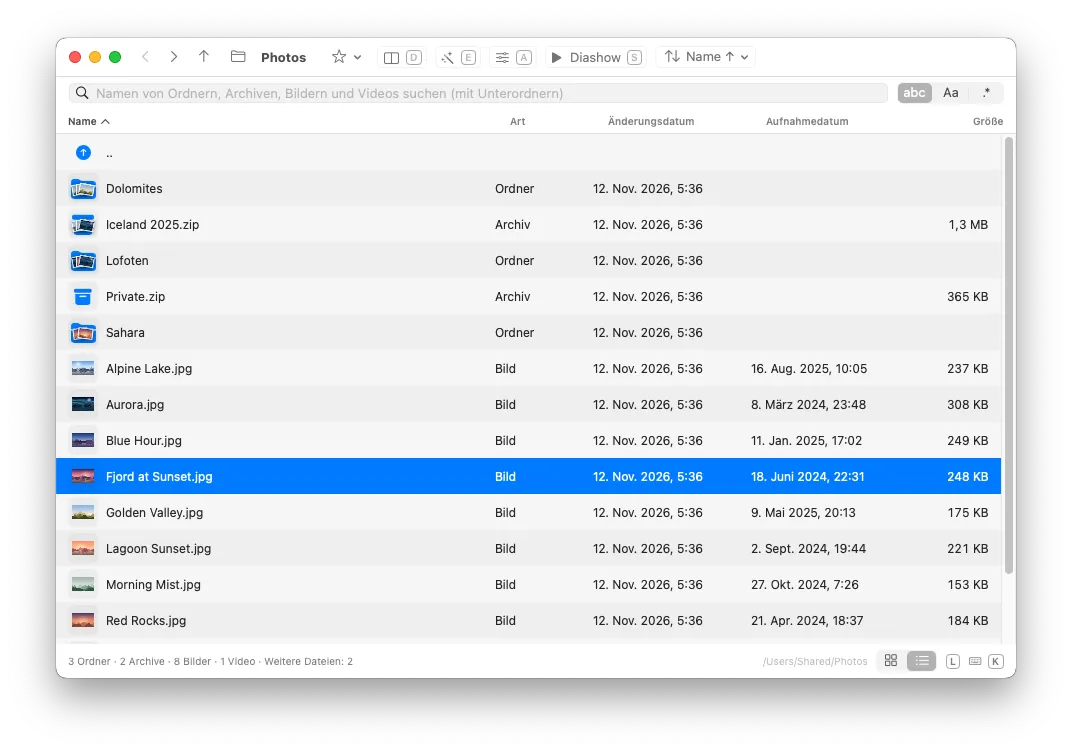
Press L to turn the grid into a list with thumbnail, name, kind, date modified, date taken and size. You can sort by name, kind, date modified, date taken, size or distance, each with a single key (⌘1 to ⌘6). The date taken comes from the EXIF data the camera writes into every photo, from XMP sidecar files, a video’s creation date, the GPS time of a GoPro, the flight log of a DJI drone or the clip file of a Sony camera. That way even copied photos appear in the order in which they were taken.
Sorted by distance, the photos and videos taken closest to a location come first. The location can be that of a photo (right-click: sort by distance from here), a click on the map, pasted coordinates or a link from Apple Maps, Google Maps or OpenStreetMap.
Search, including subfolders
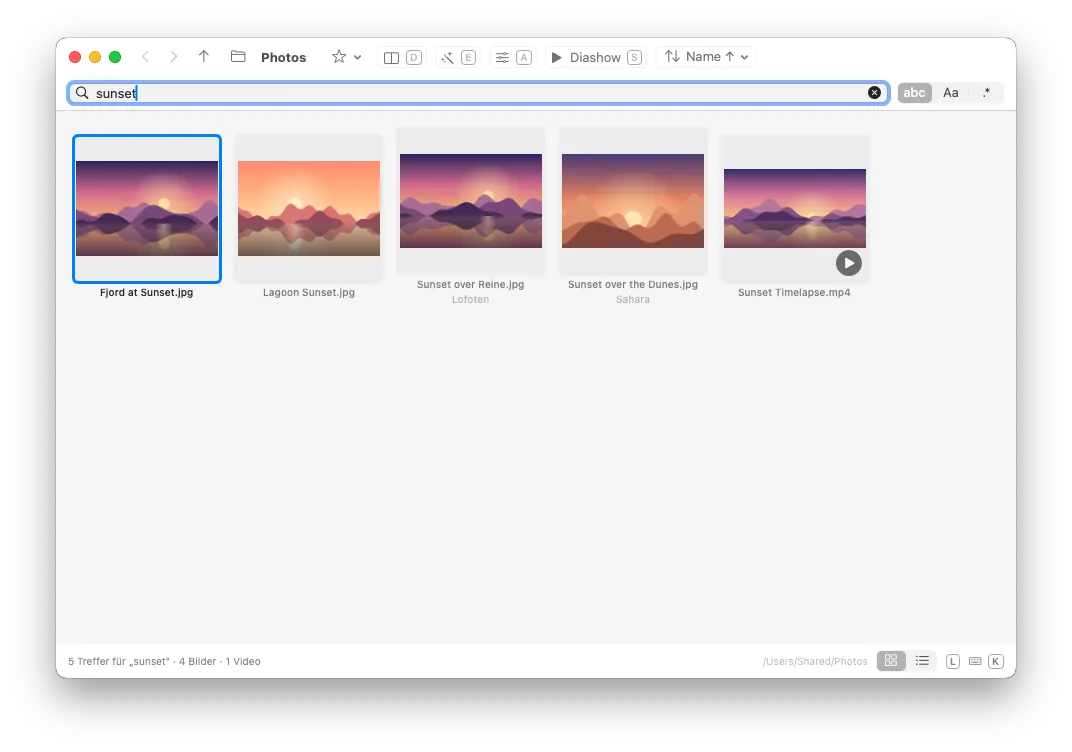
The search field is always there. It finds folders, archives, images and videos in the current folder and in all subfolders below it. Results start coming in while Schnellbild is still searching and show where they are located. If you like, you can search case-sensitively or with regular expressions.
Full view, zoom and slideshow
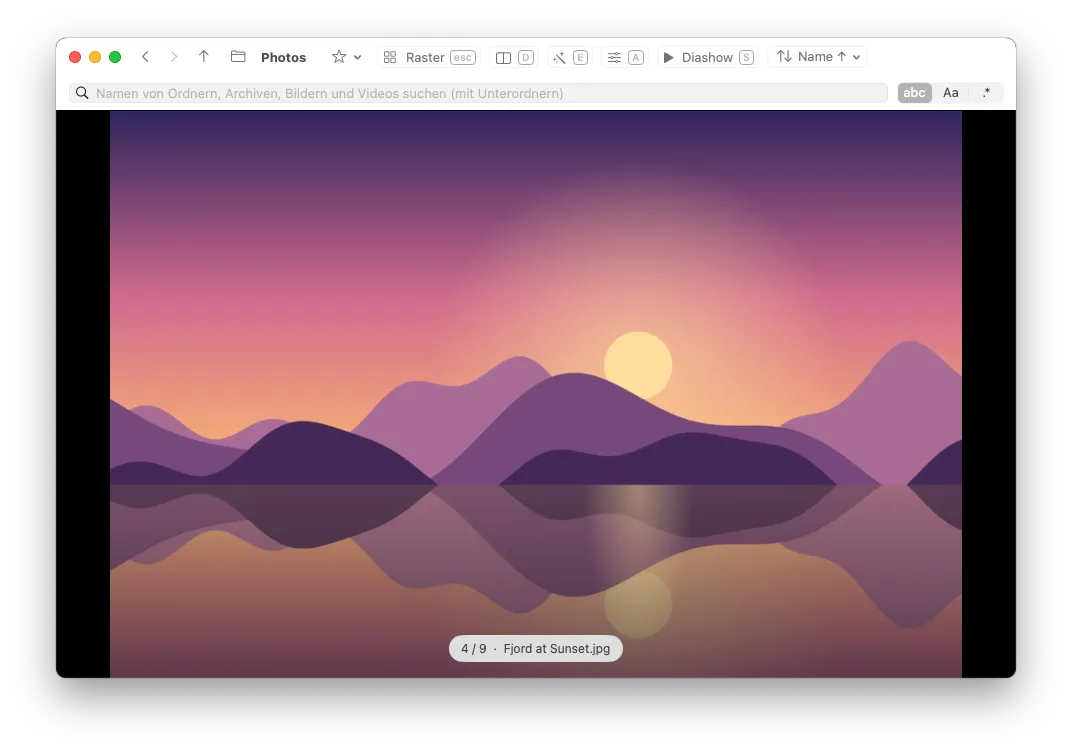
An image as large as the window allows. The arrow keys flip onward, Esc takes you back to the same spot in the grid. Zoom with + and − or with two fingers on the trackpad, 0 fits the image back into the window, ⌥← and ⌥→ rotate in 90-degree steps. Only the view changes, never the file. Animated GIFs play along.
Schnellbild shows PDFs page by page, sharp at every zoom level. The arrow keys turn the pages and, after the last page, move on to the next file, while ⌘← and ⌘→ jump straight to the previous or next file. Links, form fields and scripts in the PDF do nothing: Schnellbild only draws the pages.
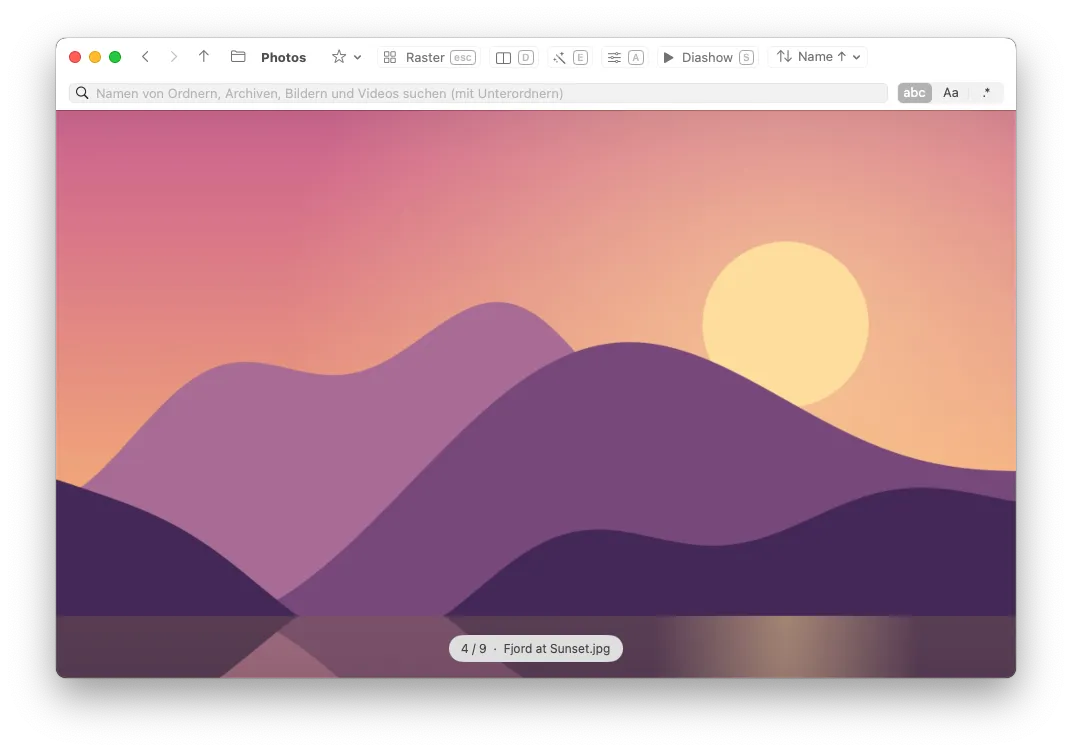
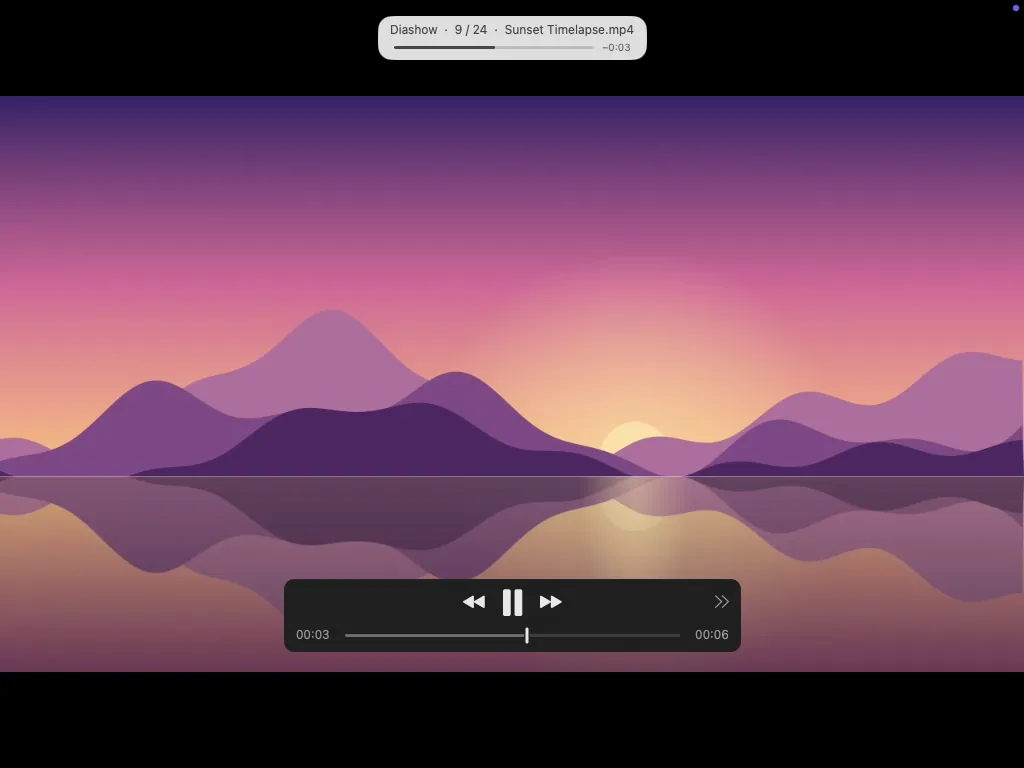
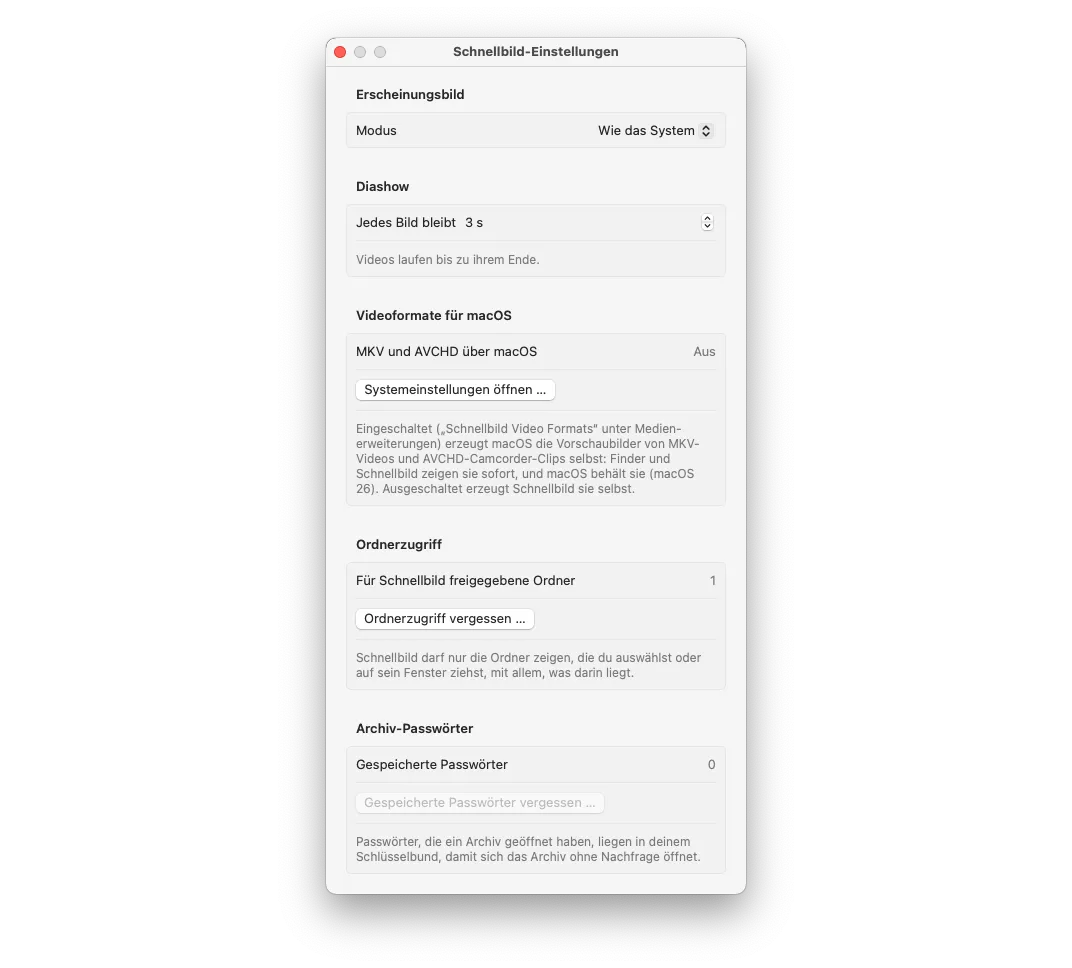
The slideshow (S key) plays all photos and videos of a folder and all its subfolders in full screen, folder by folder in the chosen sort order. Images stay on screen for three seconds (adjustable from 1 to 60), videos play to the end. The space bar pauses, Esc ends the slideshow. It starts right away, even while the subfolders are still being read. You can also drag a folder onto the window and drop it on “Slideshow”.
What the slideshow plays is the playlist. Press P and it slides in from the right: every photo and video in the order in which it plays, with thumbnail and name. Entries can be dragged to a different position, jumped to with a click or removed with ⌫. The file itself stays where it is.
MKV player for the Mac, plus AVI and WebM
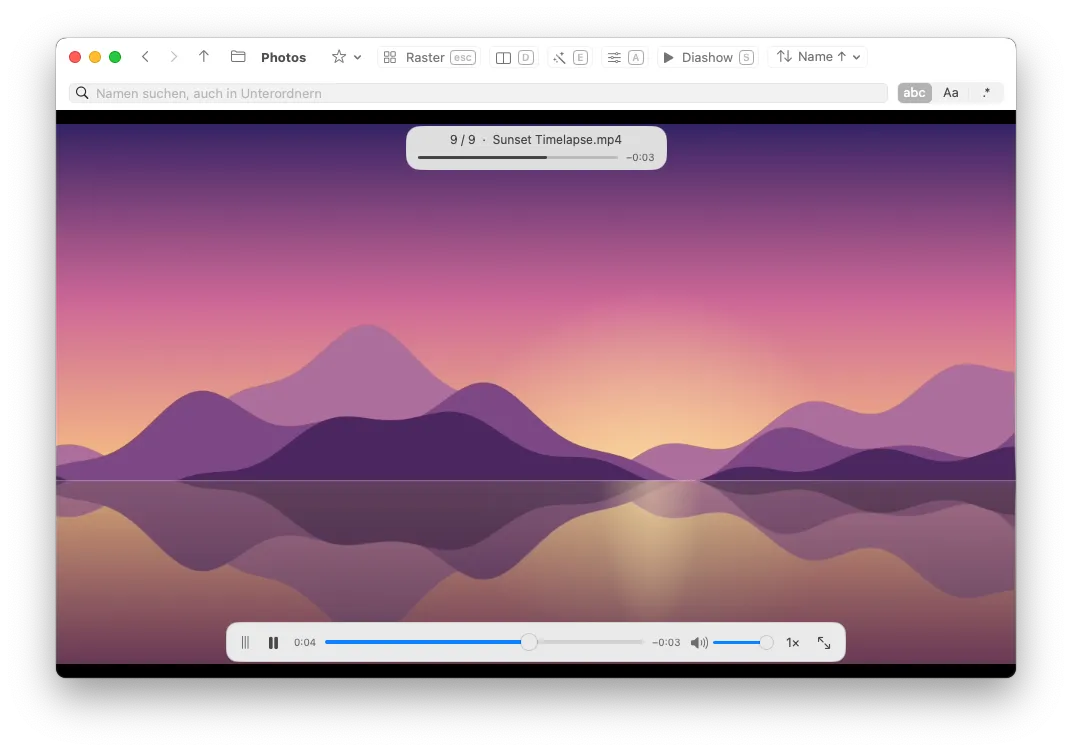
Schnellbild plays MP4 and MOV through macOS itself, including HDR, and everything else (AVI, MKV, WebM, WMV, DVD-Video …) through the built-in VLC engine. The arrow keys jump ahead by a tenth of the length and, at the end, to the next file, with ⇧ by a hundredth. So a single key flips through photos and scrubs through videos. ↑ and ↓ control the volume.
⌘→ takes you from the middle of one video to the next, ⌘← takes you back, and the first one continues where it left off.
Every video gets the same control bar, no matter which engine plays it: play and pause, a draggable position, elapsed and remaining time, volume, speed, subtitles, audio track and full screen. It appears when the mouse moves over the video, and you can drag it by its handle to wherever it doesn’t bother you.
- Subtitles in the video (MKV with SubRip, ASS or PGS, MP4 and MOV with text tracks): V turns them on and off, ⌃⌘S selects the next track. Turned on mid-video, the current line appears immediately, and ASS subtitles keep their position, colors and fonts. Schnellbild never loads subtitle files next to the video, and nothing comes from the internet.
- Audio tracks: If a video has several, such as languages or a commentary, ⌃⌘A switches the track. The control bar names the language of each track, and the chosen language carries over to the next video.
- Speed:
<and>play slower or faster, in steps from 0.5× to 2×, and voices keep their pitch.⌘\restores normal speed.
On top of that, Schnellbild teaches the Finder to show thumbnails for video formats that macOS otherwise only shows as an icon, such as MKV, WebM, WMV, FLV and VOB. This takes effect as soon as Schnellbild has been launched once.
Your photos on the map and the globe
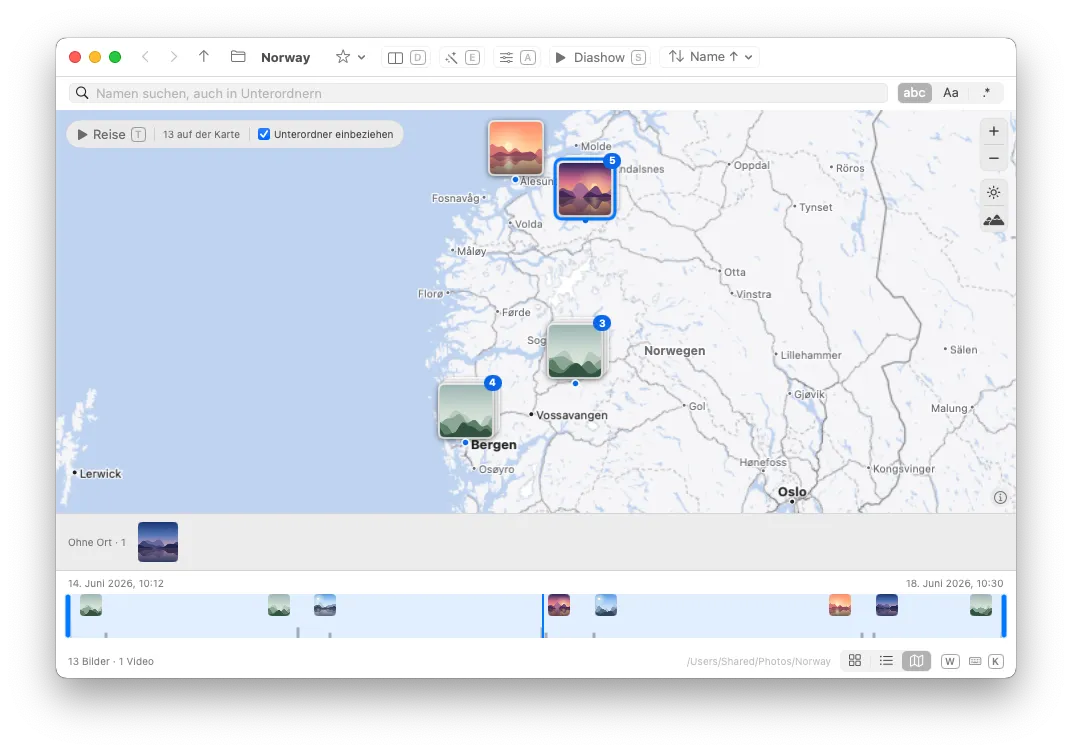
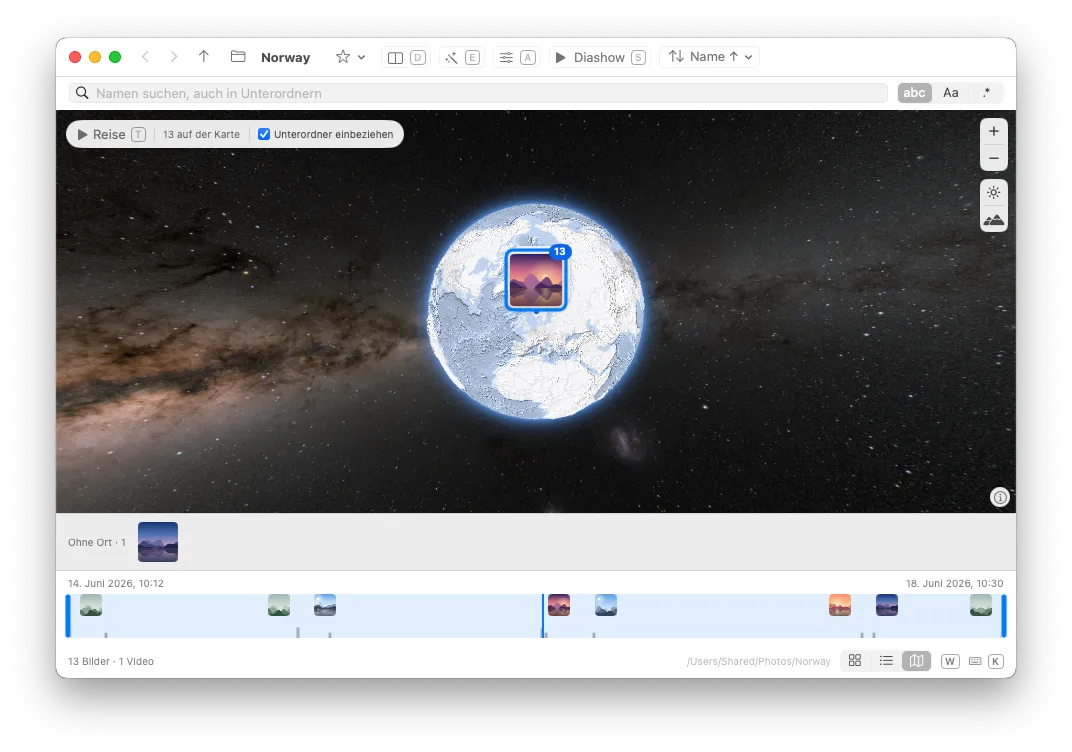
W shows the photos and videos of a folder and its subfolders where they were taken. Zoomed far out, the map is a globe against the starry sky, optionally with day and night and the city lights on the night side. As you zoom in, it becomes a flat map. When several photos are close together, a tile shows their count, and they split apart as you zoom in. Photos without a location wait in a strip below the map, and none of them gets a made-up location.
The timeline arranges the trip by time: drag across a section, and the map shows only that part. T plays back the trip in full screen: the map glides from place to place, the route grows along with it, the photos appear large, and the videos play for a few seconds.
Time and place come from the photos’ GPS data, from the location a phone writes into a video, from a GoPro’s GPS track, a DJI drone’s flight log, a Sony camera’s clip file, from XMP sidecar files and from GPX tracks in the same folder. The map is built into the app, from OpenStreetMap data: nothing goes online, and no location leaves your Mac.
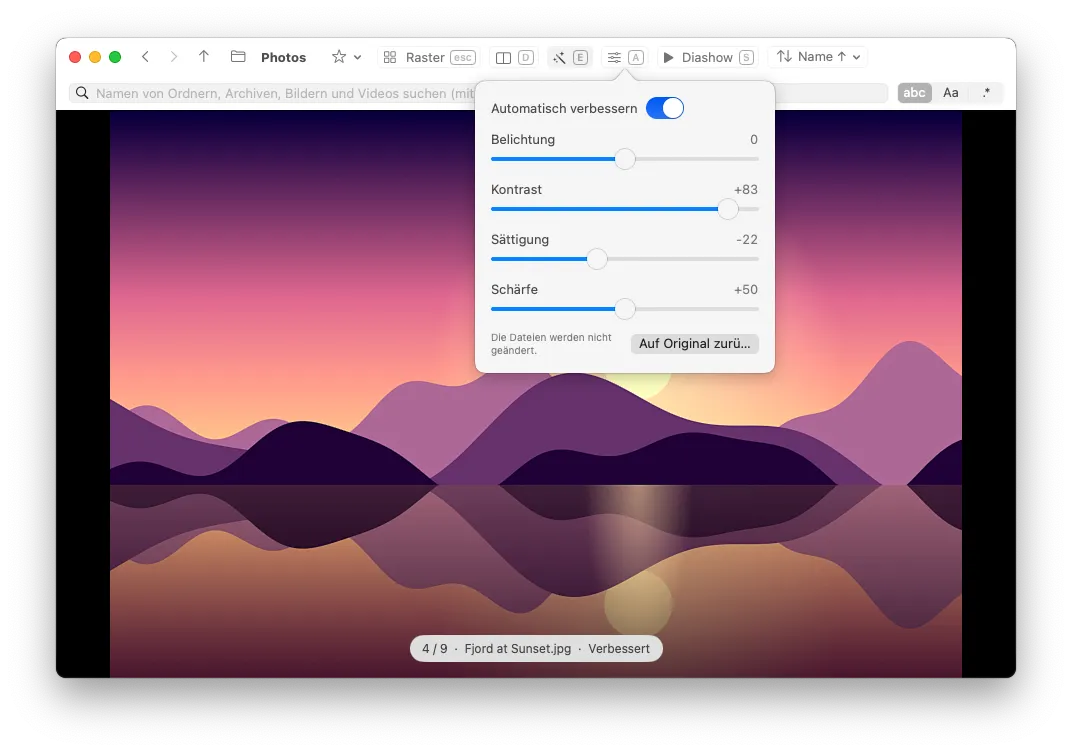
Auto enhance
Night shots, dark videos, flat or overexposed images: press E, and Schnellbild adjusts exposure, contrast, saturation and sharpness to fit. With videos, the values glide along with the scenes without flickering. Press A to bring up the sliders and fine-tune by hand. It is all a filter on the screen: the files stay as they are.
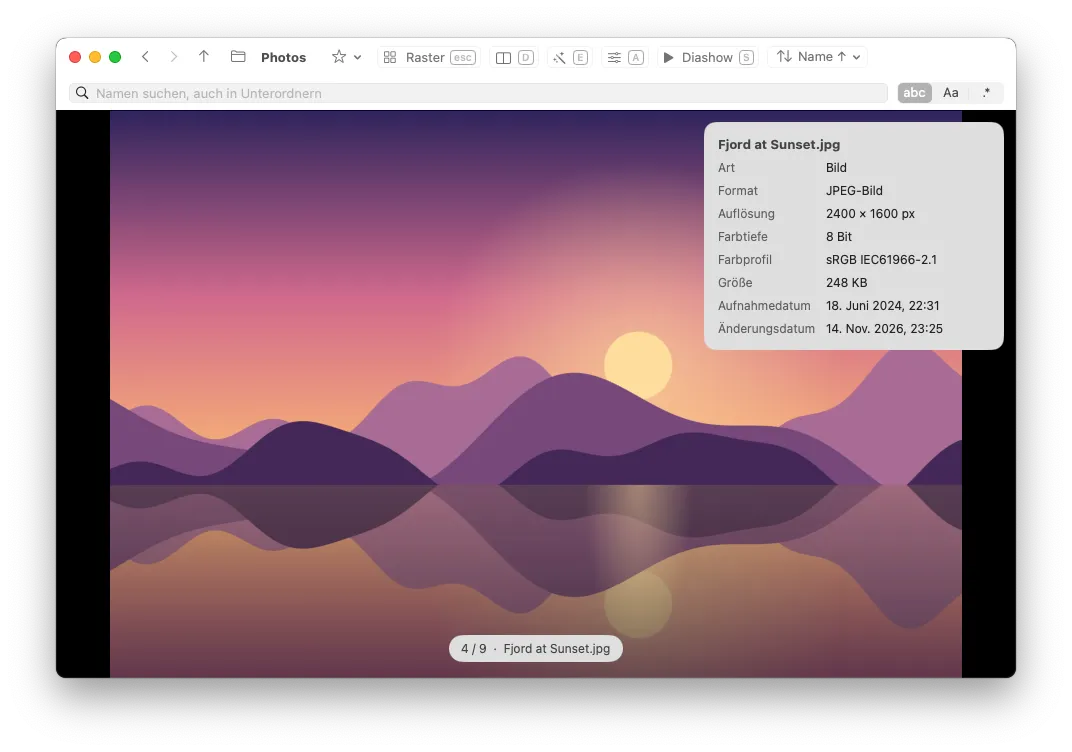
File info
Press I and Schnellbild shows everything important about the file: format, resolution, size, date taken, for photos the camera and color profile, for videos the codecs, length and bitrate. If a file has the wrong extension, such as a PNG named .jpg, you get a notice with the correct extension.
There is also when and where a photo was taken, with a small map and the nearby place, camera and lens with aperture, shutter speed, ISO and focal length, color depth and HDR (PQ, HLG, Gain Map, Dolby Vision), and for videos the tracks. Every metadata key (EXIF, GPS, IPTC, XMP, QuickTime) can be filtered and copied.
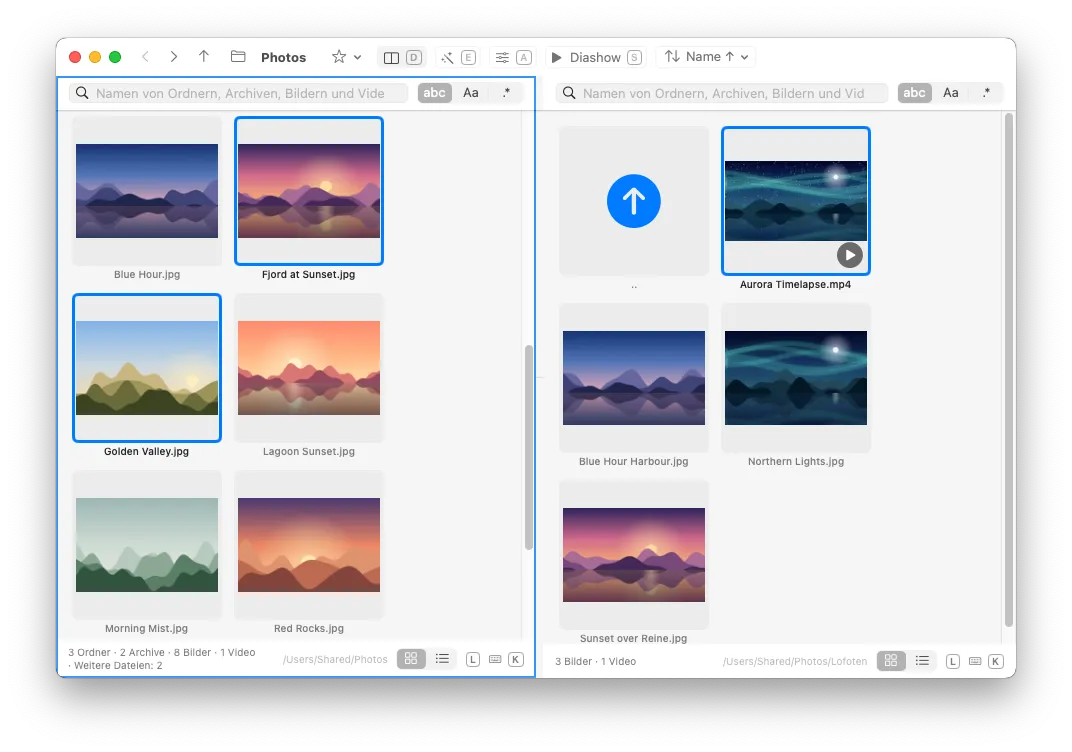
Two panes side by side: sorting vacation photos
Press D and the window splits into two panes, like in Norton Commander, the two-pane file manager from the DOS era. On the left the photo collection, on the right the folder for the trip: select images, copy them with F5 or move them with F6, or drag them across. The other function keys are where they used to be, too: F3 opens, F7 creates a folder, F8 moves to the Trash (on Mac keyboards, depending on your settings, together with fn). Renaming, moving, copying and moving to the Trash can be undone via the context menu.
Archives like folders
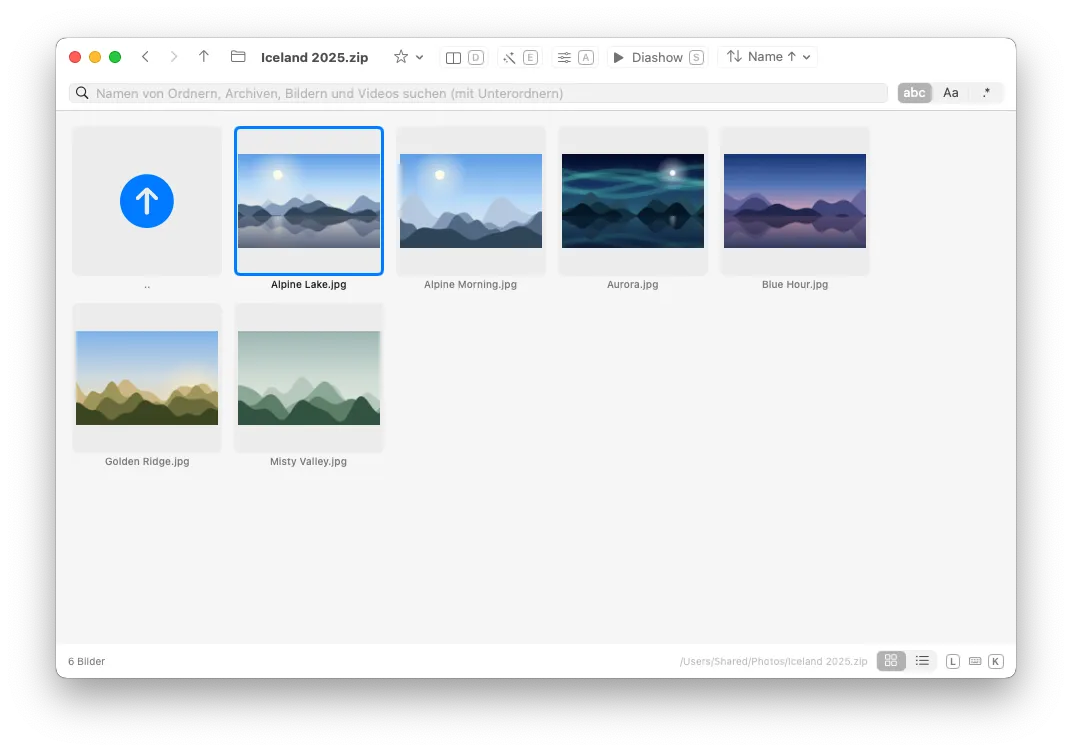
ZIP, RAR and 7z (including comics as CBZ and CBR) open like folders: browse, play videos, start a slideshow, search inside. Nothing gets extracted: images go straight into memory, videos stream from the archive. Archives split into several parts (such as .part1.rar or .7z.001), password-protected archives and downloads still in progress can be viewed as well.
All keys at hand, including your own
F1 shows all keys, ready to print as well. K shows a small clickable keyboard below the window, with the keys that currently do something. In the settings (⌘,) under Keyboard, every action can get different or additional keys, free like everything else. If you are coming from Phiewer, choose the Phiewer key layout.
Light or dark, as you like
Some people love Dark Mode, others hate it. Decide for yourself: follow the system, light or dark, your choice. You’ll find it in the settings (⌘,) under Appearance.
Supported formats
- Photos and graphics: JPEG, HEIC/HEIF, AVIF, JPEG XL, PNG, GIF, WebP, TIFF, BMP, JPEG 2000
- Vector and documents: SVG, PDF (page by page)
- HDR and image editing: OpenEXR, Radiance HDR, Photoshop (PSD), Targa, DDS, icons
- Camera RAW: Canon, Nikon, Sony, Fujifilm, Olympus/OM, Panasonic, Leica, Pentax, Samsung, Hasselblad, Phase One, Adobe DNG and others, as far as macOS supports them
- Videos: MP4, MOV, M4V, 3GP, MKV, WebM, AVI, WMV, FLV, Ogg, MPEG, DVD-Video (VOB), AVCHD (MTS, M2TS), DV
- Archives: ZIP, CBZ, RAR, CBR, 7z, including split and password-protected archives
Alternative to IrfanView, XnView, Phiewer and IINA
If you used IrfanView or XnView on Windows, you are often looking for an image viewer on the Mac that flips through a folder just as fast and with the keyboard alone. Schnellbild does exactly that: open the folder, arrow key, next image, and the videos play along in the same grid.
Three programs were the role models for Schnellbild. Phiewer, an image viewer for the Mac, for flipping through images by keyboard, IINA, a video player for the Mac, for handling videos quickly, and Norton Commander for the two panes with their function keys.
Phiewer comes as a free Lite version and as a paid PRO version. If you are looking for a free alternative to Phiewer, Schnellbild offers the same keyboard-driven way of browsing, optionally with the same keys as in Phiewer, plus videos including MKV, AVI and WebM, archives as folders and the two panes for sorting. Like Schnellbild, IINA is free and open source, but it is a player for watching movies, with subtitle files, chapters and picture-in-picture. Schnellbild is a viewer for finding and sorting, with photos and videos in one grid and many keys you know from IINA.
The Schnellbild website compares the app with 80 image viewers, video players, comic readers and file managers, feature by feature and with sources, including IrfanView, Phiewer and IINA: all alternatives compared
Open source
Schnellbild is free and open source. The source code, build instructions and all the details are on GitHub: github.com/JohannesHoppe/schnellbild
The Schnellbild website with download and all features: schnellbild.haushoppe-its.de